
6.9. EEMService.com instructions
6.9.1. Introduction
WinEEM Service Tool version 1.25 provides an ECU replacement procedure which communicates with EEMService.com cloud service. To use the ECU replacement procedure, you must first register to EEMService.com.
Prerequisites:
- Internet Explorer 11 or above
- EEMService.com subscription code from your OEM product support
- Symantec PKI client (included in WinEEM4 Service Tool installer)
6.9.2. Registering to EEMService.com
This section provides step-by-step instructions to registering to EEMService.com. You may close WinEEM4 Service Tool anytime and continue the registration process from where you left.
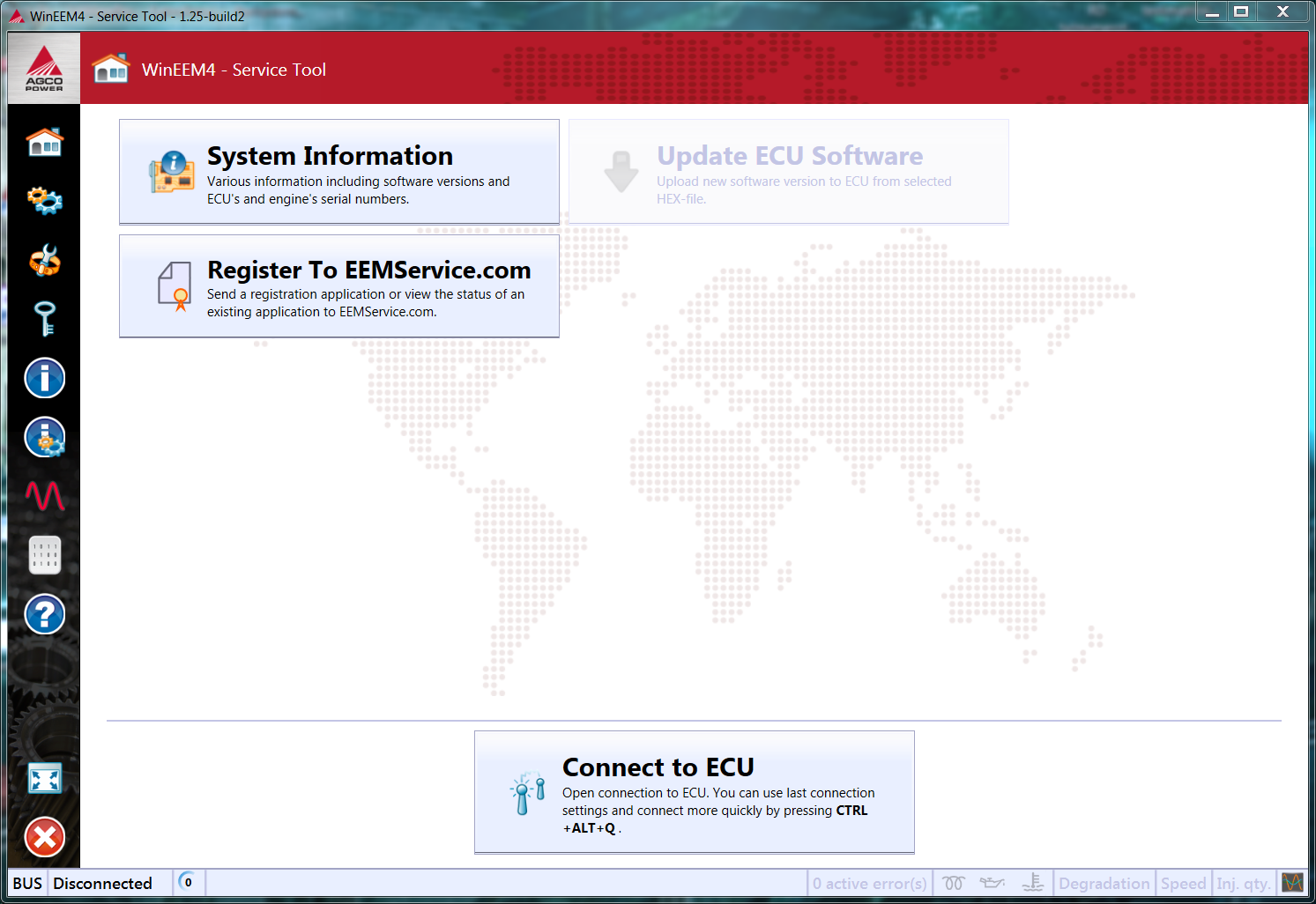
Open WinEEM4 Service Tool and select Register To EEMService.com from the home view.
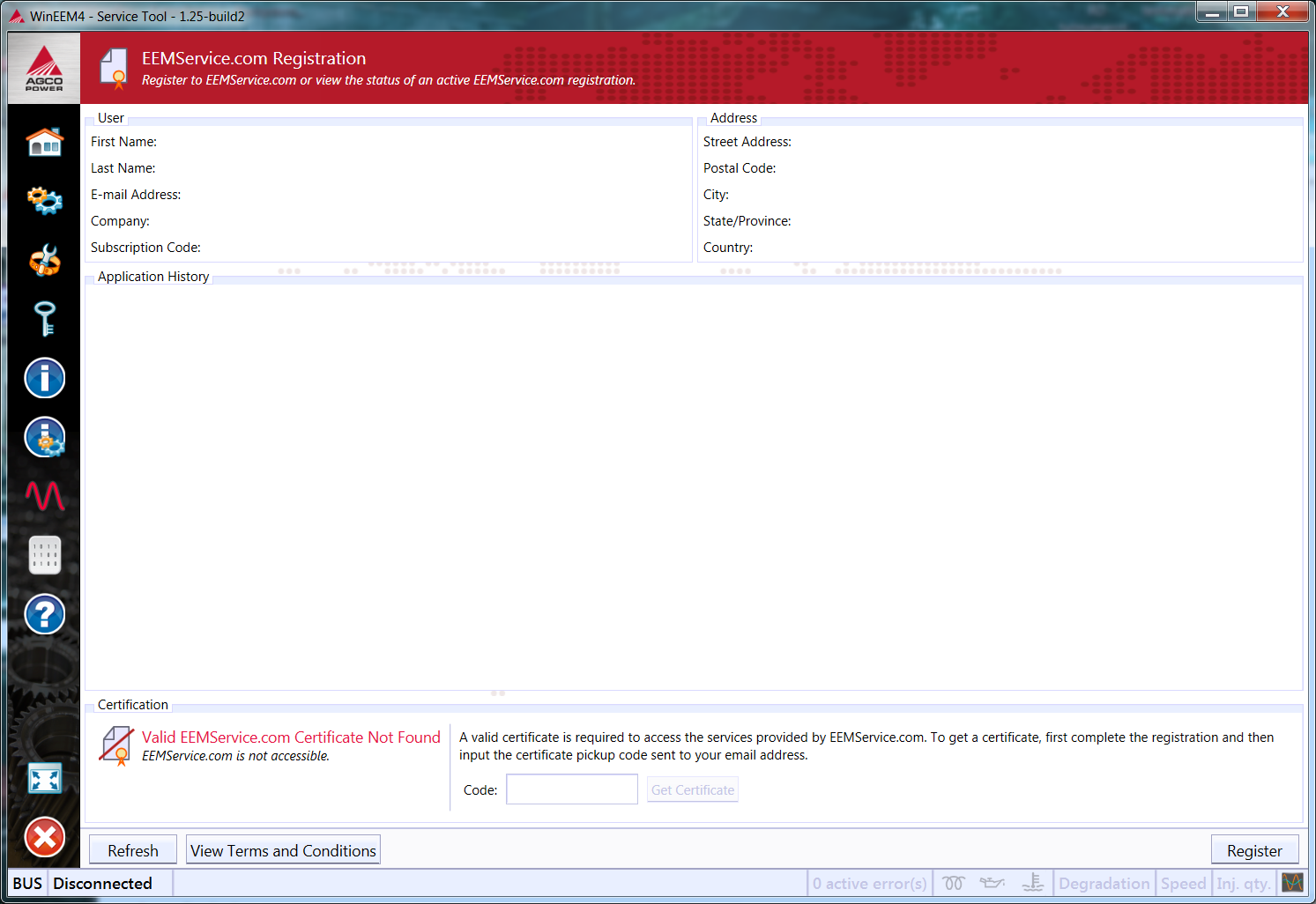
EEMService.com Registration view is shown. Select Register and wait for Service Tool to fetch the service terms and conditions.
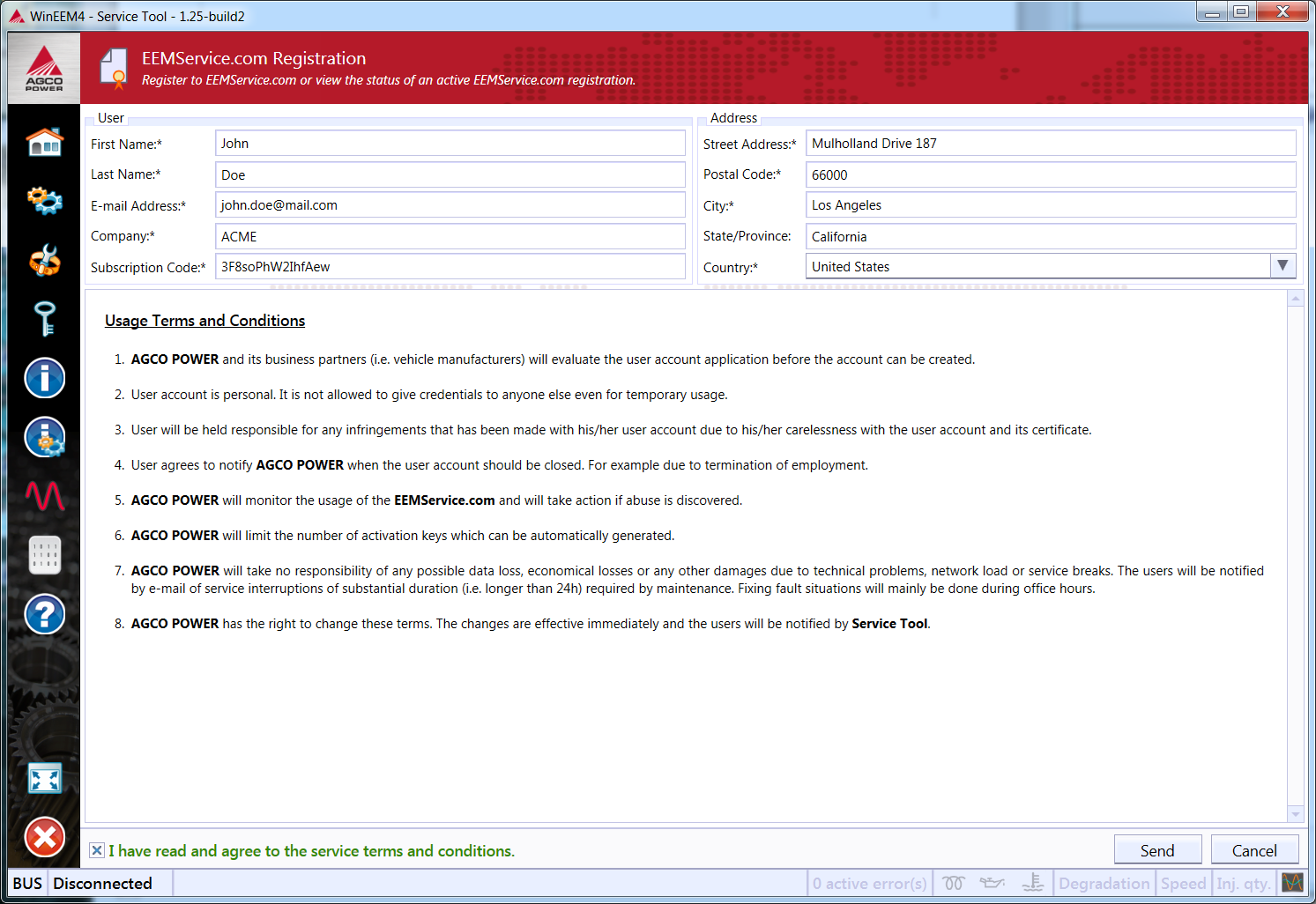
Fill-in the registration information. A valid e-mail address, which you can access, is needed for next steps in the registration process. Your OEM product support needs to provide you a subscription code before registration. State/Province field is optional. Read and agree to the usage terms and conditions and select Send.
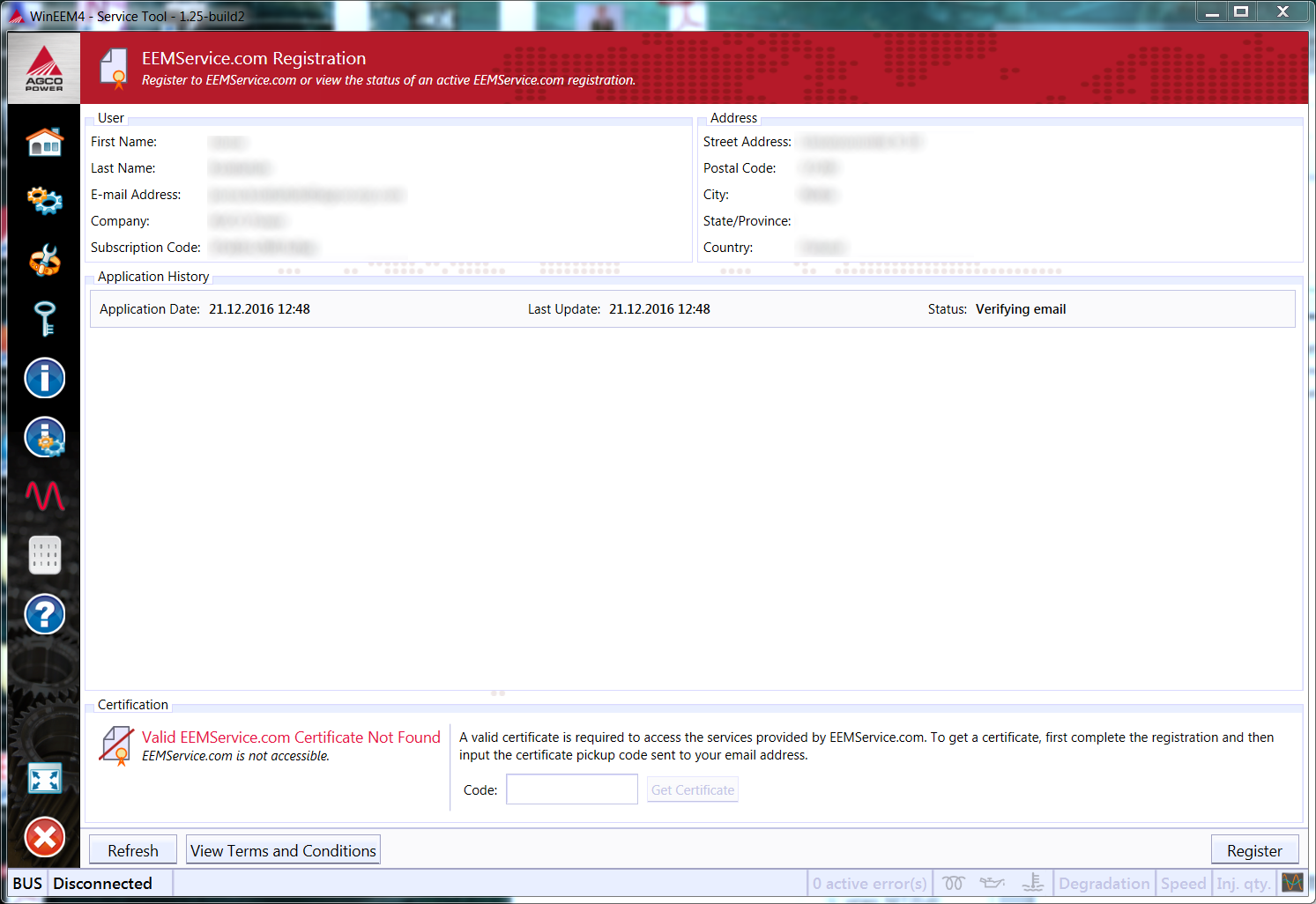
Your registration application has been received now. You will soon automatically receive an account verification e-mail. To verify your e-mail address, click the link in the account verification e-mail.
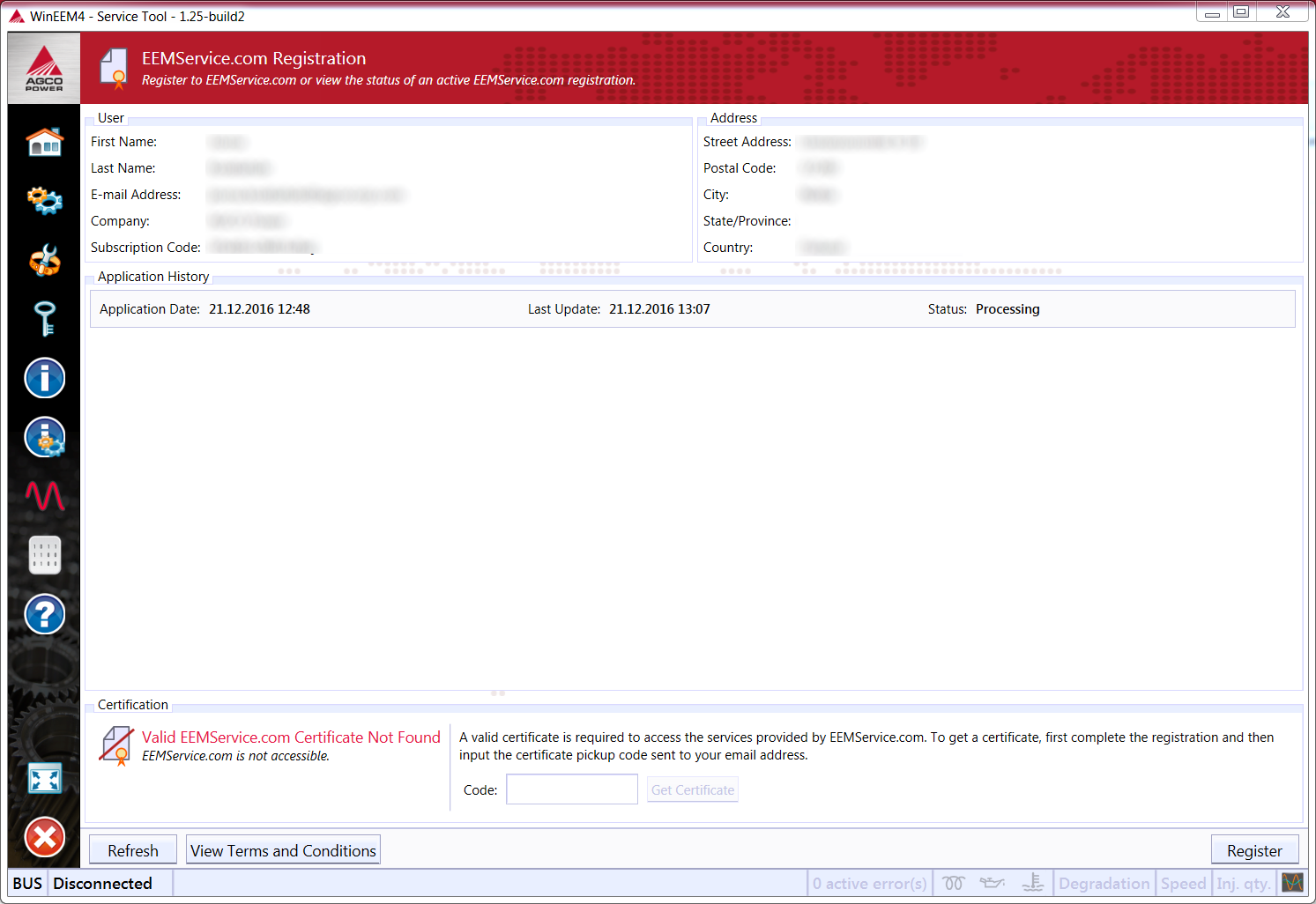
Clicking now Refresh in the lower left corner of the view should update the current status of your application. The status should now be Processing. EEMService.com administrators need to review and approve your application before the process continues.
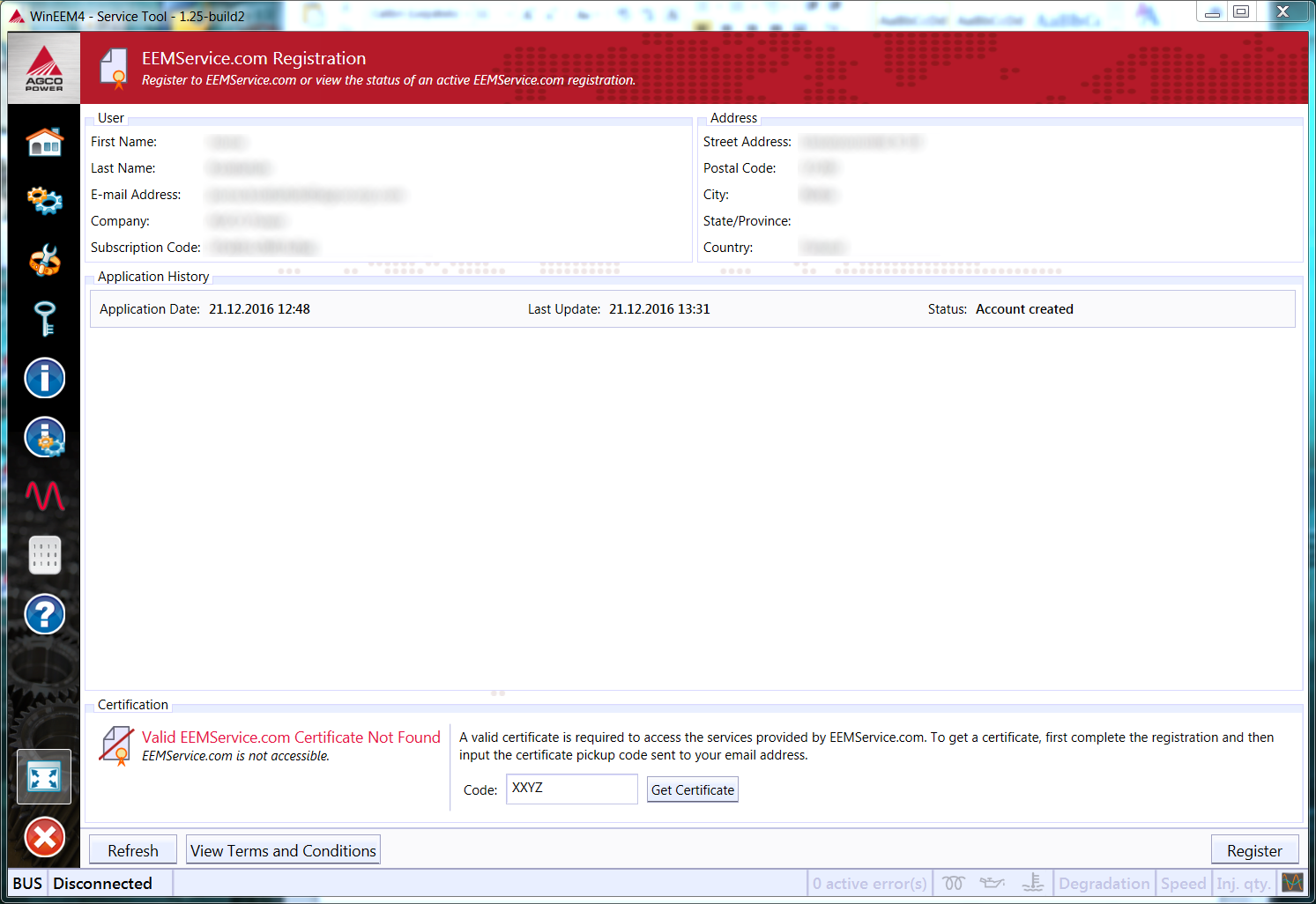
After EEMService.com administrators have approved your application, the application status in Service Tool should change to Account created (click Refresh to update the view). You will also receive an e-mail to the e-mail address you provided in your application. Enter the code given in the e-mail to the Code field in Service Tool and click Get Certificate.
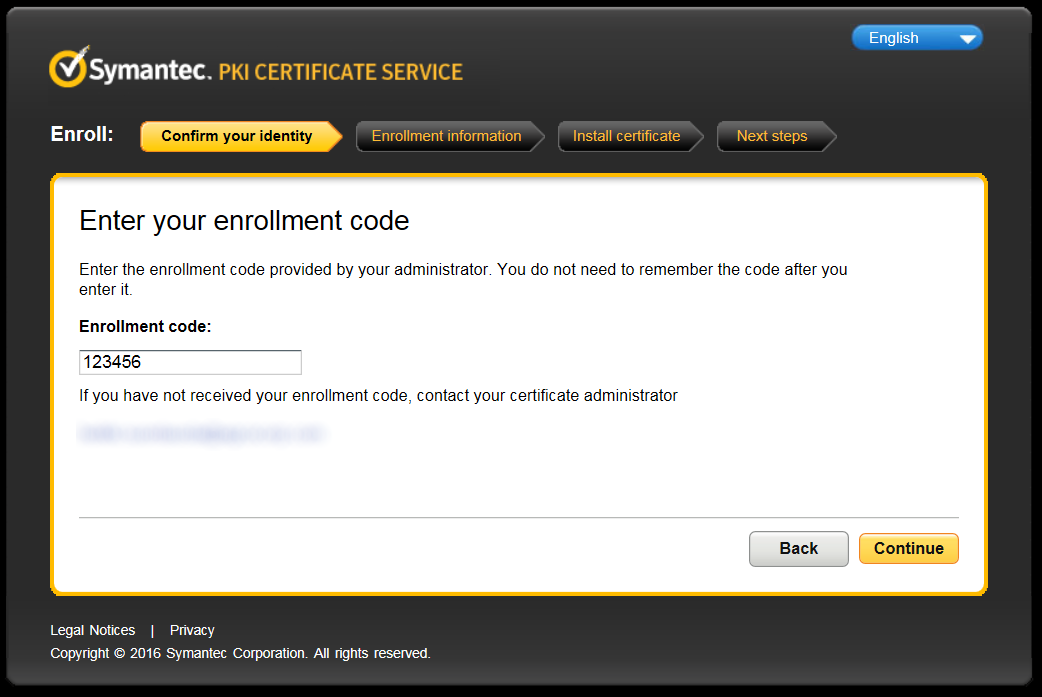
Internet Explorer opens into a site asking for your enrollment code. Enter the enrollment code given in the earlier e-mail message (the same message with the earlier code) and click Continue.
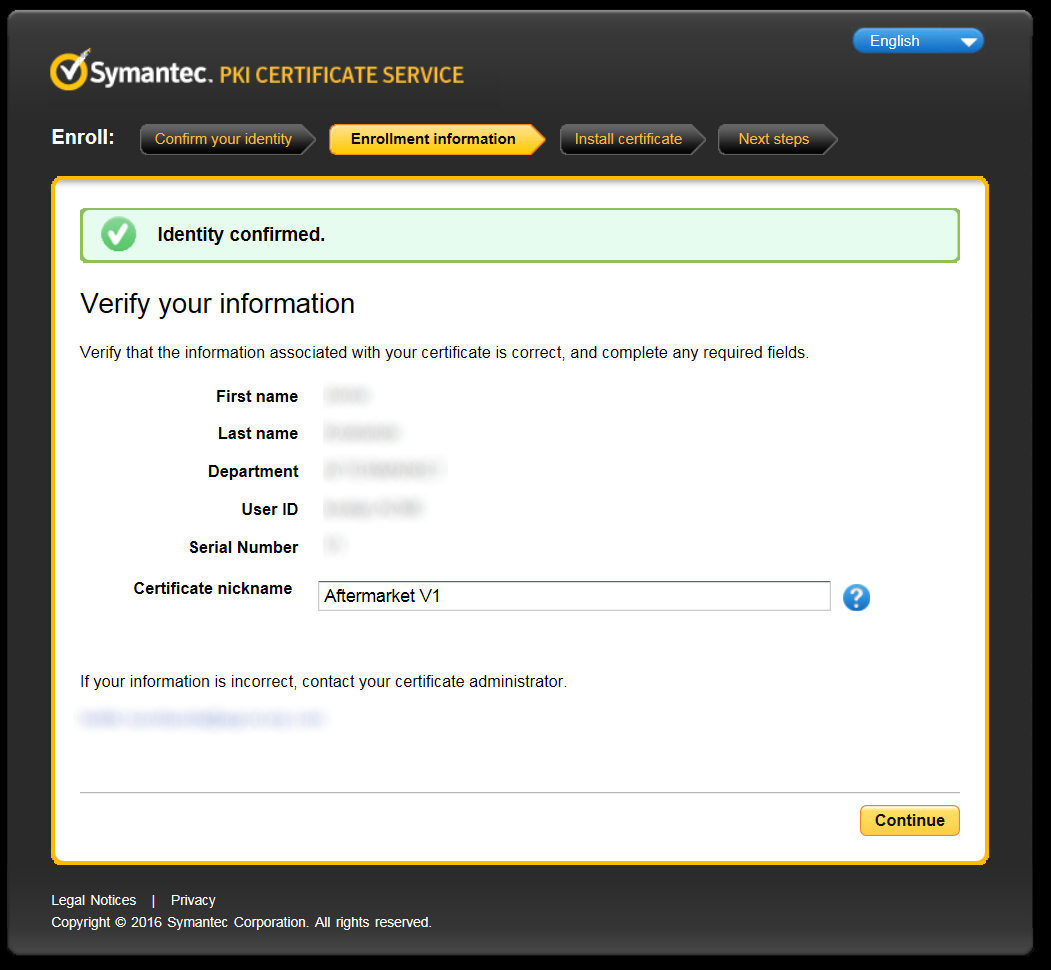
Verify that the information is correct. You may change the Certificate nickname if you wish. Click Continue.
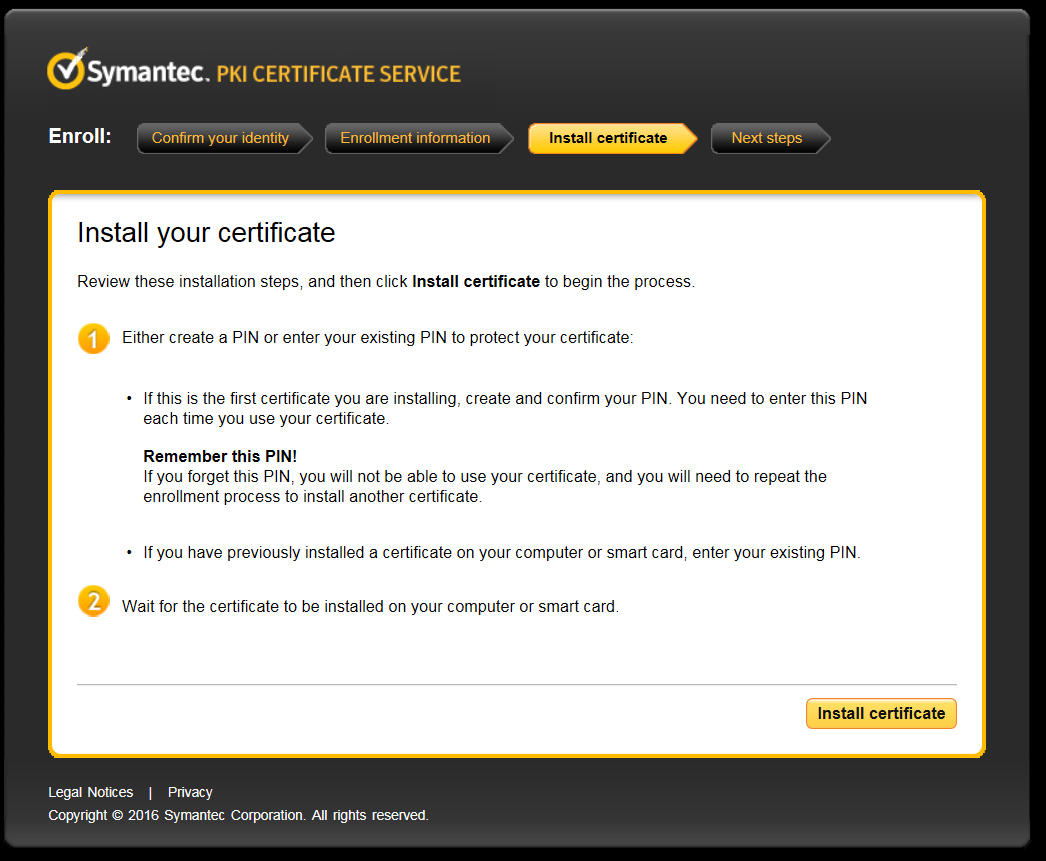
Read the certificate installation reminders and click Install certificate.
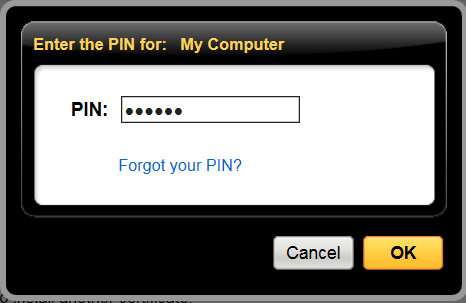
Create a PIN code for your certificate. Remember this PIN code, since you will need it later! When you have typed the PIN code, click OK.
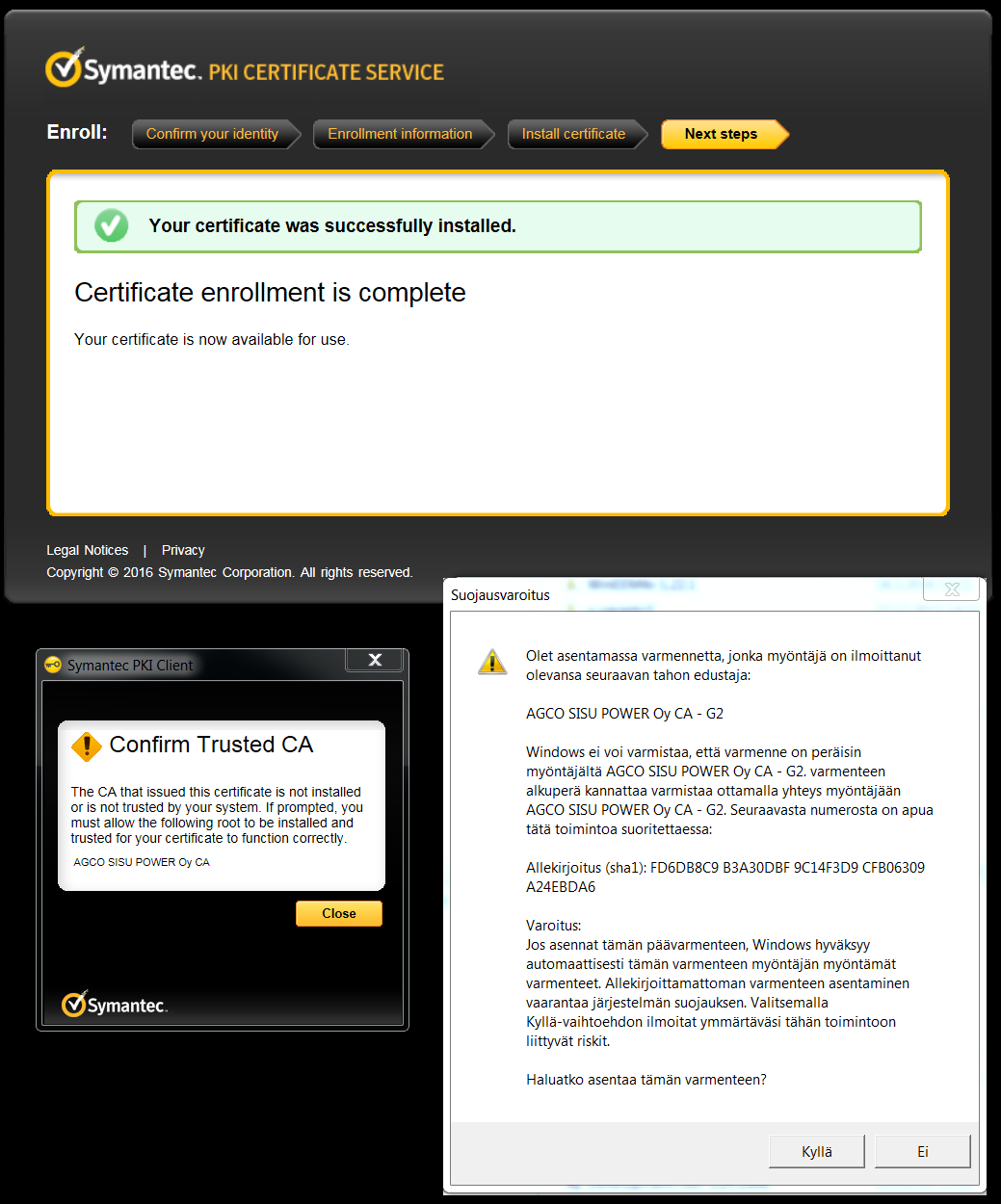
The certificate has now been downloaded and you are asked to confirm its installation. Before confirming the installation, check that the issuer is AGCO SISU POWER Oy CA – G2 and that the thumbprint is FD6DB8C9 B3A30DBF 9C14F3D9 CFB06309 A24EBDA6. If this is the case, select Yes / Kyllä in the security warning dialog to install the certificate.
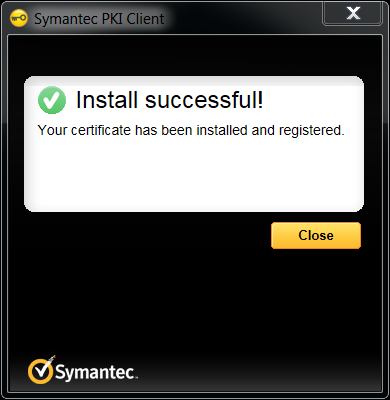
Symantec PKI Client should now say the installation was successful. Click Close. You may also close Internet Explorer now.
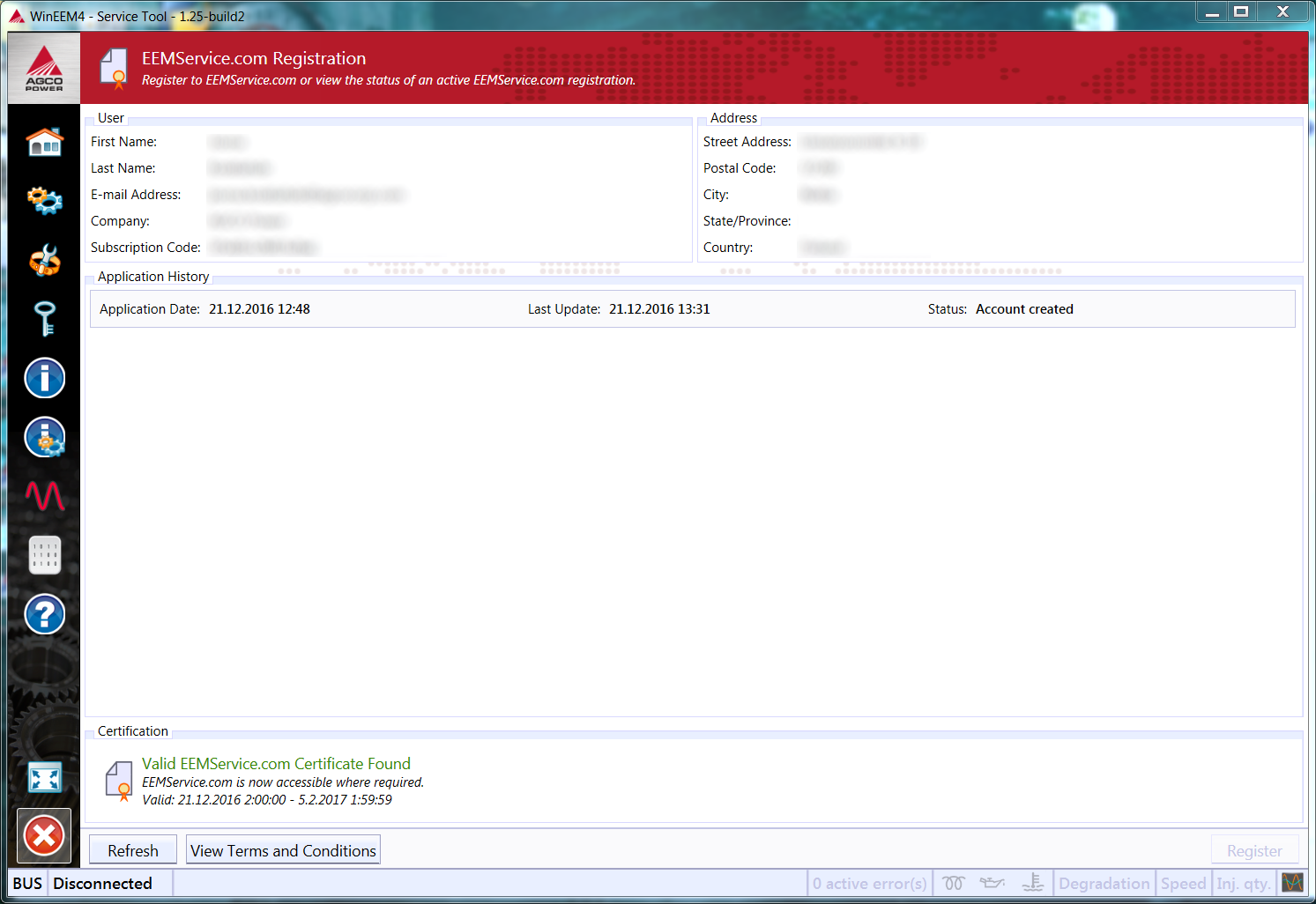
Service Tool should be able to find your certificate now. Click Refresh or restart Service Tool if the certificate is not found immediately. EEMService.com Registration view should display Valid EEMService.com Certificate Found as green text in the bottom of the view. Your registration process is now complete.
6.9.3. ECU replacement procedure
The ECU replacement procedure can be found from ECU activation category in WinEEM4 Service Tool version 1.25. The procedure itself offers verbose instructions for each phase. You can run the procedure after you have registered to EEMService.com.
The general idea of the procedure is that the old ECU is deactivated and a new replacement ECU you have at hand is activated for the engine. If the old ECU is broken and you cannot communicate with it, it needs to be reported as broken and you need to enter details of the old ECU manually.
The procedure may be saved at any time. You can exit Service Tool and continue the procedure from where you left. Internet connection is required in the phase when the procedure communicates with EEMService.com. During this phase, Symantec PKI Client might ask for your certificate PIN code (which you selected yourself).
Before running ECU replacement procedure, you should check from Service Information view in Diagnostic category of Service Tool that there are no counter variables causing engine performance limitations. Also, you should test the engine operation with the new replacement ECU with Specification Mismatch Override functionality which can be found from ECU activation category in Service Tool. Run the ECU replacement procedure and permanently replace the ECU with the new one only if the new ECU resolves the problems.
6.9.4. Injector calibration codes
WinEEM4 Service Tool version 1.25 is also able to send and receive injector calibration to/from EEMService.com. Injector calibration changes you make are reported to EEMService.com. You may also fetch the latest reported injector calibration codes for the engine you are connected to by clicking Get Calibration From EEMService.com in the Injector Calibration view. For this purpose, Symantec PKI Client may ask for your certificate PIN code (which you selected yourself) after startup or during injector calibration. In general, it is good practice to enter the PIN code whenever Symantec PKI Client asks for it.