
5.1. WinEEM4 Service Tool General Information
5.1.1. Starting Service Tool
The service tool can be started by double clicking the WinEEM4s Service Tool shortcut on the desktop or on the start menu at the following selection:
Start --> All Programs --> AGCO Power --> WinEEM4s Service Tool --> WinEEM4s Service Tool
5.1.2. UI Introduction
The service tool user interface has been divided into 5 main sections or functions.
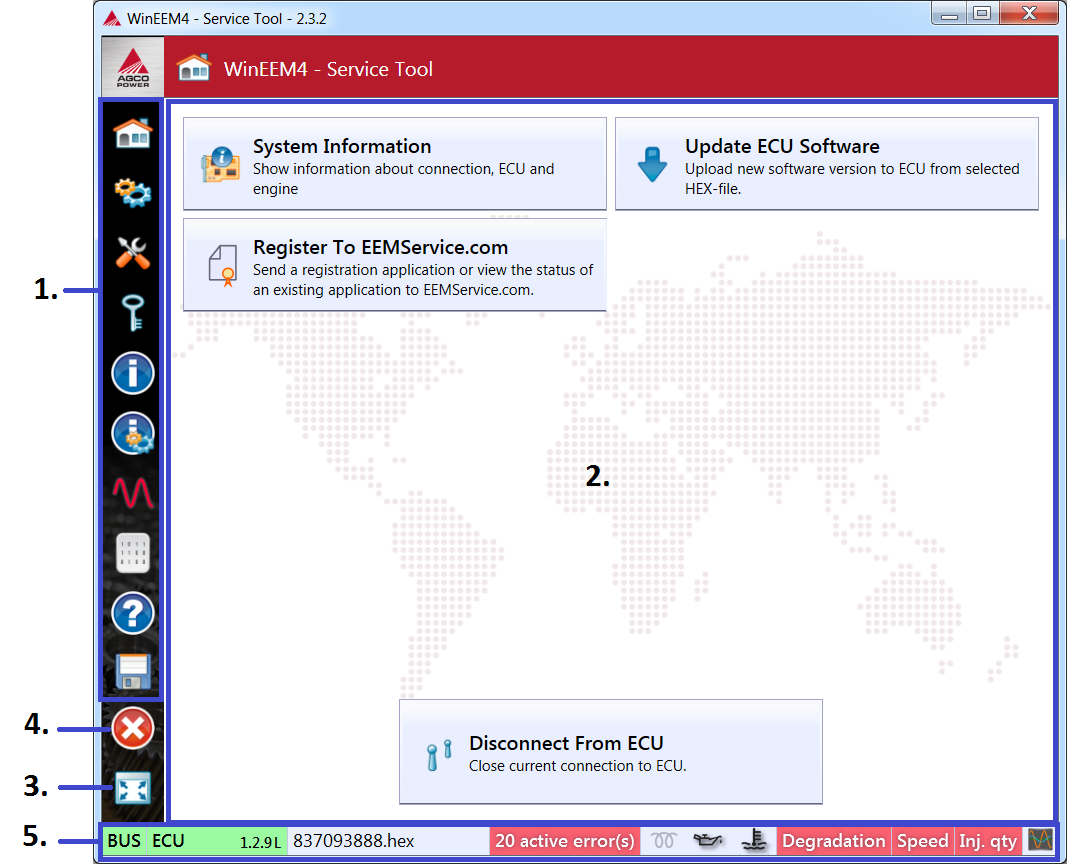
Service tool user interface
Diagnostic category selection
- Use this to select a different diagnostic category.
Main diagnostic area
- This area will display the diagnostic content. For instance the engine status page or the error log.
Full screen button
- Use this to switch the full screen mode on and off. This is useful especially on computers with a small screen size.
Close button
Status bar
- The status bar always shows the connection status, the active error count, the warning and error lamps, and the CAN-bus status.
5.1.3. Minimum Hardware Requirements
- 1GHz Intel Pentium III or compatible CPU
- 512 MB or more RAM
- 1024x768 high-color 32-bit display
- Up to 2 GB of hard disk space may be required
- Supplied CAN-interface
5.1.4. Software Requirements
- 32/64-bit Windows 7 or newer
- Microsoft .Net Framework 4.0 Full
- Included in the installation media.